Changes take 1-2 minutes to apply
Before troubleshooting, please wait a few minutes after making any changes (creating maps, updating settings, or adjusting placement). It takes a short time for changes to propagate to your live storefront.
Issue 1: Subscription not active
An active Omnium Maps subscription is required for maps to render on your storefront. If your Omnium Maps subscription has lapsed or was never activated, visitors won't see the map even if everything else is set up correctly.
Open the Subscription page from the app navigation and subscribe to Omnium Maps.
Issue 2: Map created on the wrong page
Each map in Omnium Maps is linked to a specific page in your Shopify store. If you're viewing a different page than the one assigned to your map, the map won't appear there.
Open the Omnium Maps app and check the dashboard. Each map card shows the page URL it is linked to.
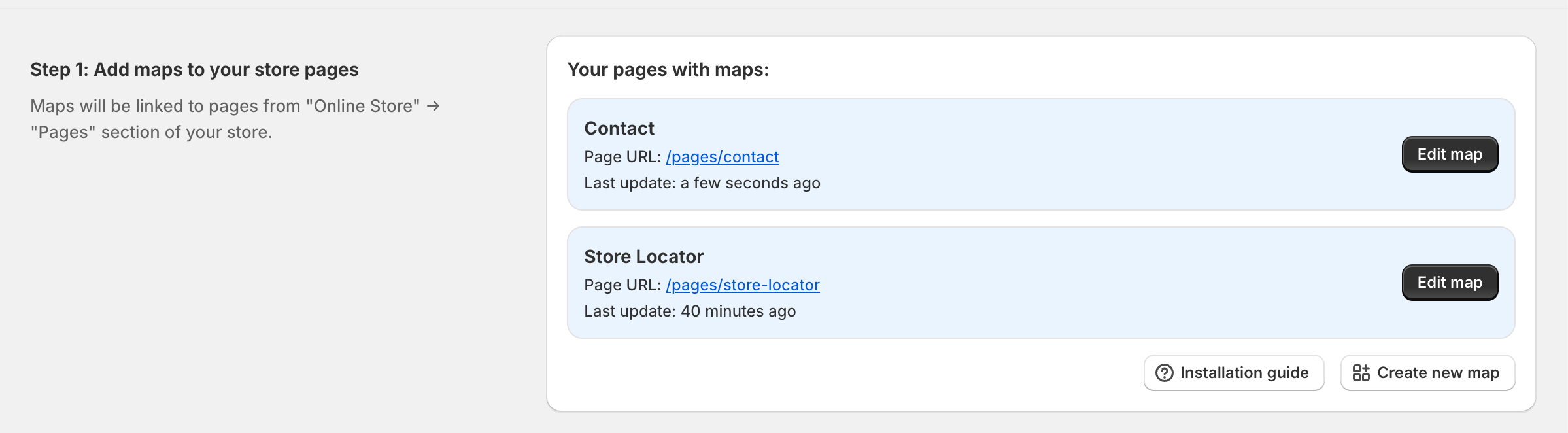
Make sure you're visiting the exact page that's listed. For example, if your map is linked to "pages/store-locator", navigating to "pages/where-to-buy" won't show the map.
Issue 3: App embed not activated
For maps to display on your store, the Omnium Maps app embed block must be activated in your current theme.
Critical requirement
Without the app embed activated, your maps will not render on your storefront, even if everything else is configured correctly.
If you recently switched to a new theme, you must reactivate the app embed for that theme.
To activate it:
- Open the Omnium Maps app and go to the Settings page.
- In the App embed block section on the right, click the "Activate" link. This opens the Shopify Theme Editor with the Omnium Maps block already enabled.
- Click "Save" in the theme editor to apply the change.
- Return to the Settings page and click "Check" to confirm the activation was registered.
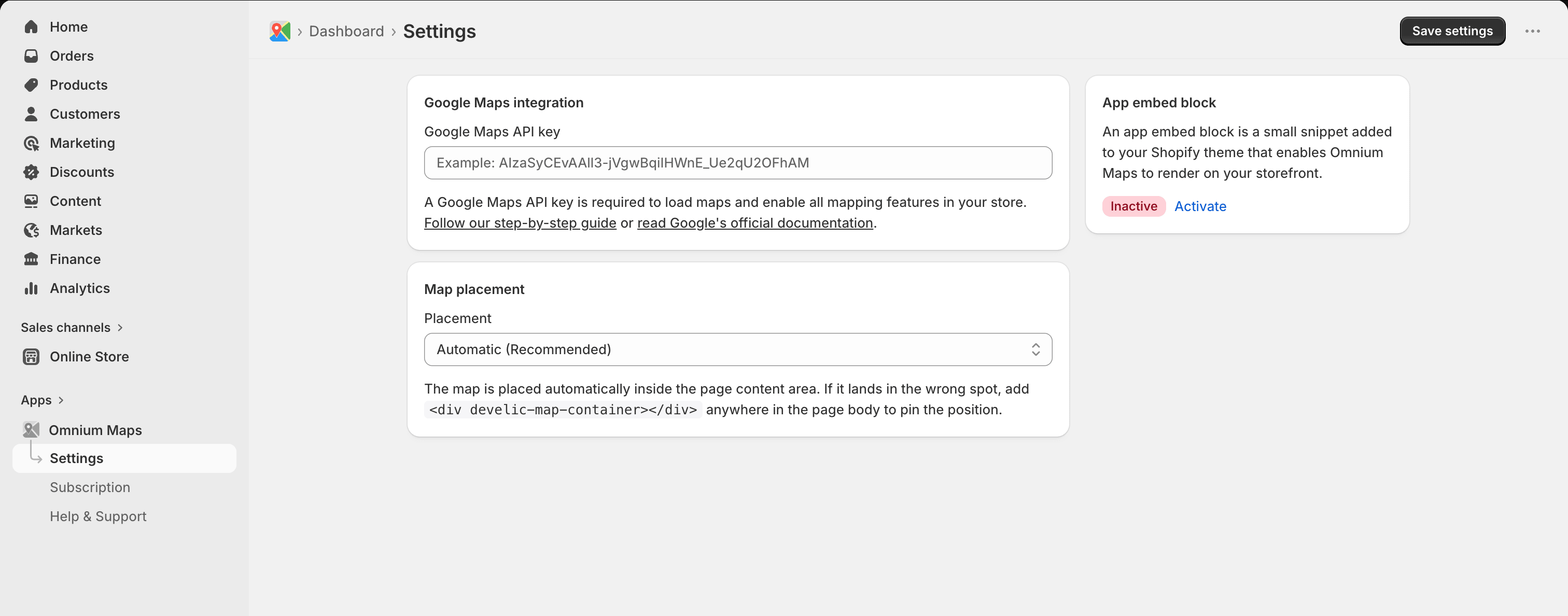
Issue 4: Automatic placement not working
Omnium Maps uses automatic placement by default, which works seamlessly with the majority of Shopify themes. However, some themes have non-standard page structures that prevent automatic placement from working correctly.
Signs that automatic placement might not be working:
- The map doesn't appear at all on the page
- The map appears in an unexpected location (e.g., header, footer, or sidebar)
- The map overlaps with other page content
Before switching to manual placement mode, try adjusting the automatic placement using a simple HTML code snippet. This lets you control exactly where your map appears while keeping automatic placement active.
Copy this code snippet, which tells Omnium Maps exactly where to render your map:
<div develic-map-container=""></div>Navigate to your page in the Shopify admin and switch to the HTML editor (look for a </> or "Show HTML" button). Paste the snippet where you want the map to appear.
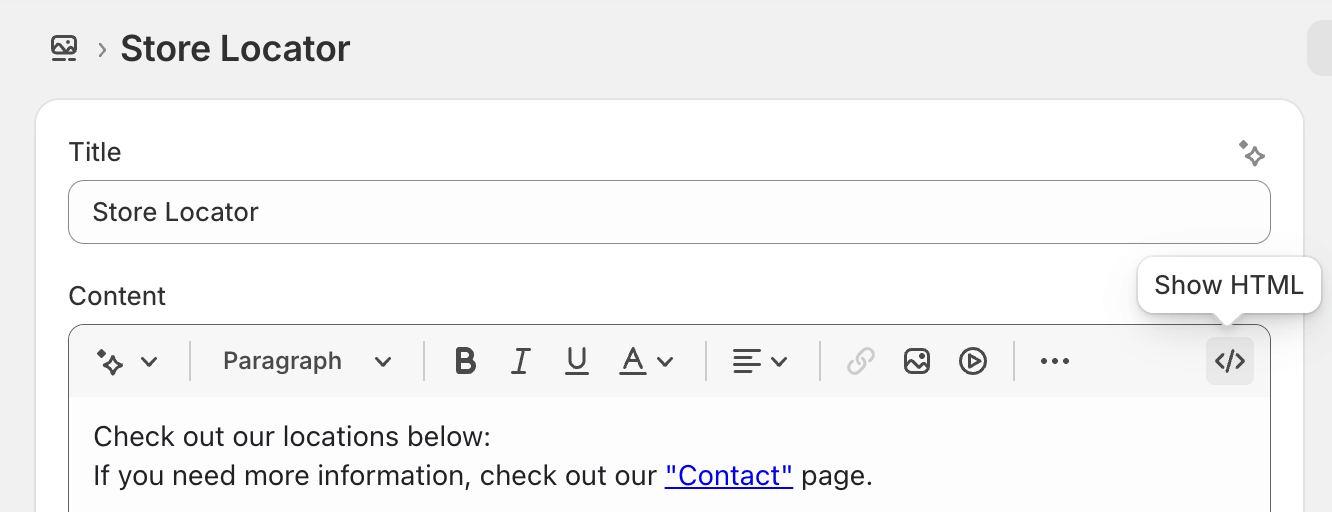
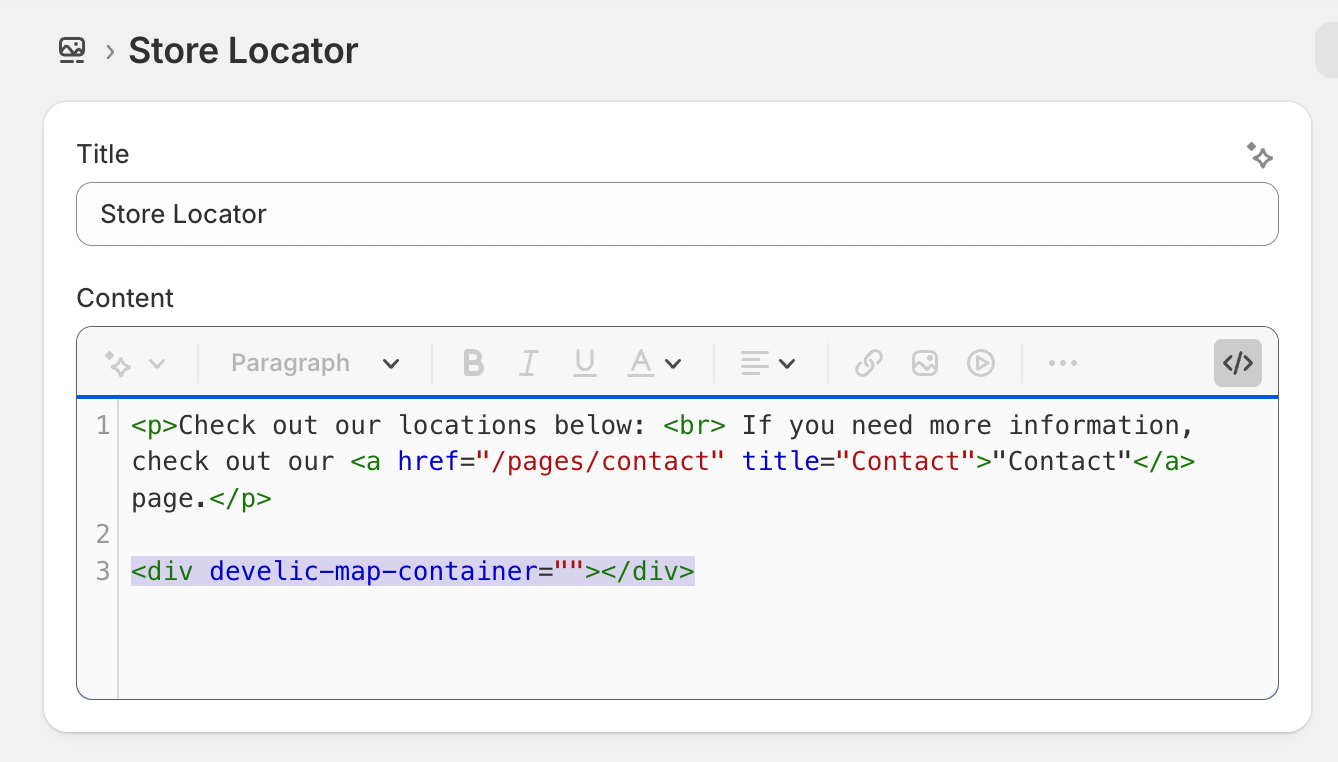
If adjusting automatic placement with the HTML snippet doesn't work for your theme, you can switch to one of two manual placement modes in the Settings page.
Option A: CSS Selector Placement
This method targets a specific HTML element on your page using CSS selectors.
Best for: Users comfortable with basic HTML/CSS or those following our documentation.
Example: #page-content .main-content
Option B: Liquid Template Placement (Legacy)
This method involves inserting a Liquid code snippet directly into your theme's template files. This is a legacy option. CSS selector placement is recommended for new setups.
Best for: Existing setups already using Liquid placement, or users working with a developer.
Need additional help?
Contact our support team and we'll help you diagnose and resolve the issue.