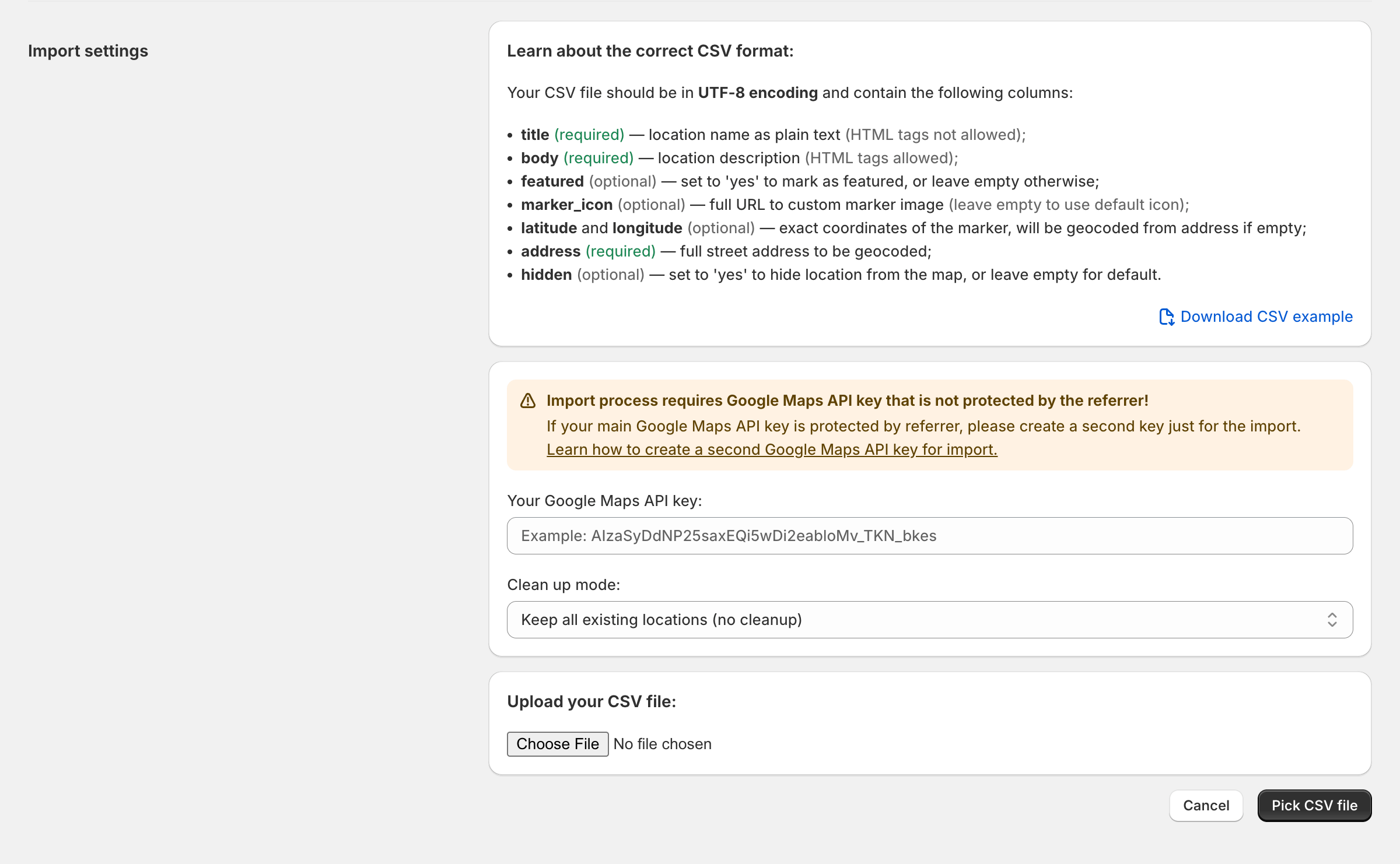
Why a different key for imports?
A second API key is only needed in a specific situation: your CSV rows are missing latitude/longitude columns, so the app must geocode each address to get coordinates, AND your main Google Maps API key is restricted to your storefront domains, so it gets rejected when used from the Shopify admin during import.
If your CSV already includes coordinates, no API key is needed for the import at all. If your main key has no domain restrictions, you can enter it in the import key field instead of creating a second one.
Why domain-restricted keys don't work for imports
CSV import runs from your browser while you are using the Shopify admin, not from your storefront domain. Because of that, a key that is locked to your storefront domains can be rejected during import.
The fix is a second key for imports, with no website restrictions, restricted only to the Geocoding API. Do not place this key in the main Google Maps API key field in Settings, and do not use it in storefront code.
Creating your import API key
Create a new API key specifically for CSV imports, in the same Google Cloud project as your existing configuration.
Open the Google Cloud Console and navigate to APIs & Services → Credentials.
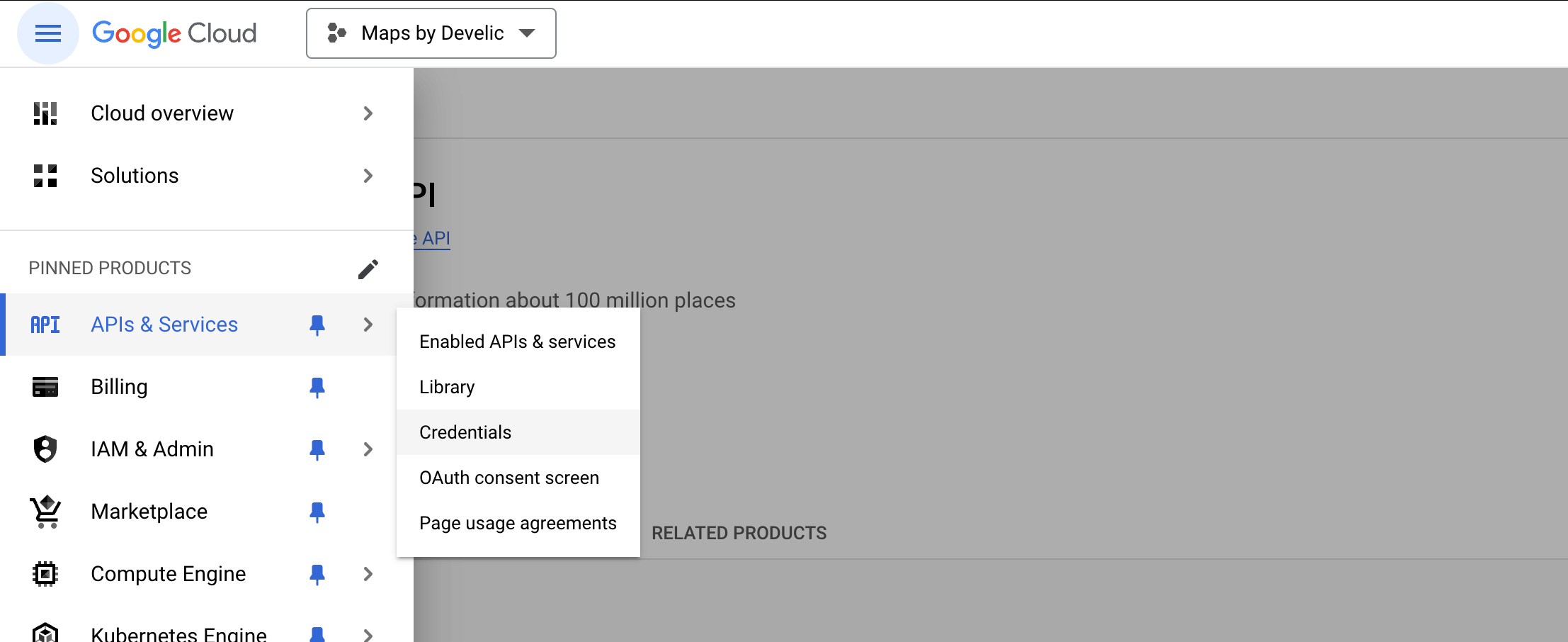
Verify you're in the correct project by checking the project name at the top of the console.
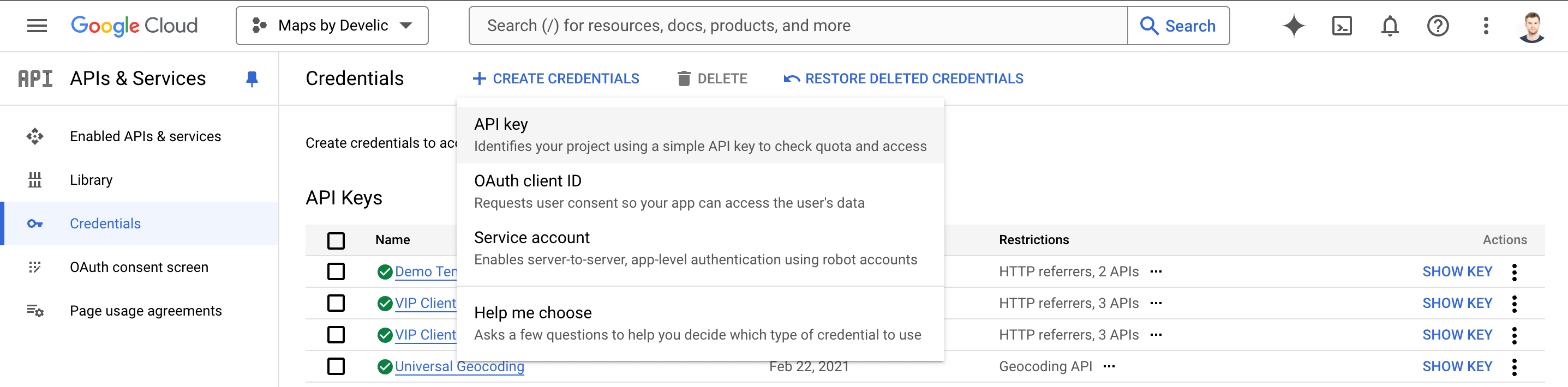
Click the "Create Credentials" button at the top of the page, then select "API key" from the dropdown menu.
Google will generate your new API key instantly and display it in a dialog box.
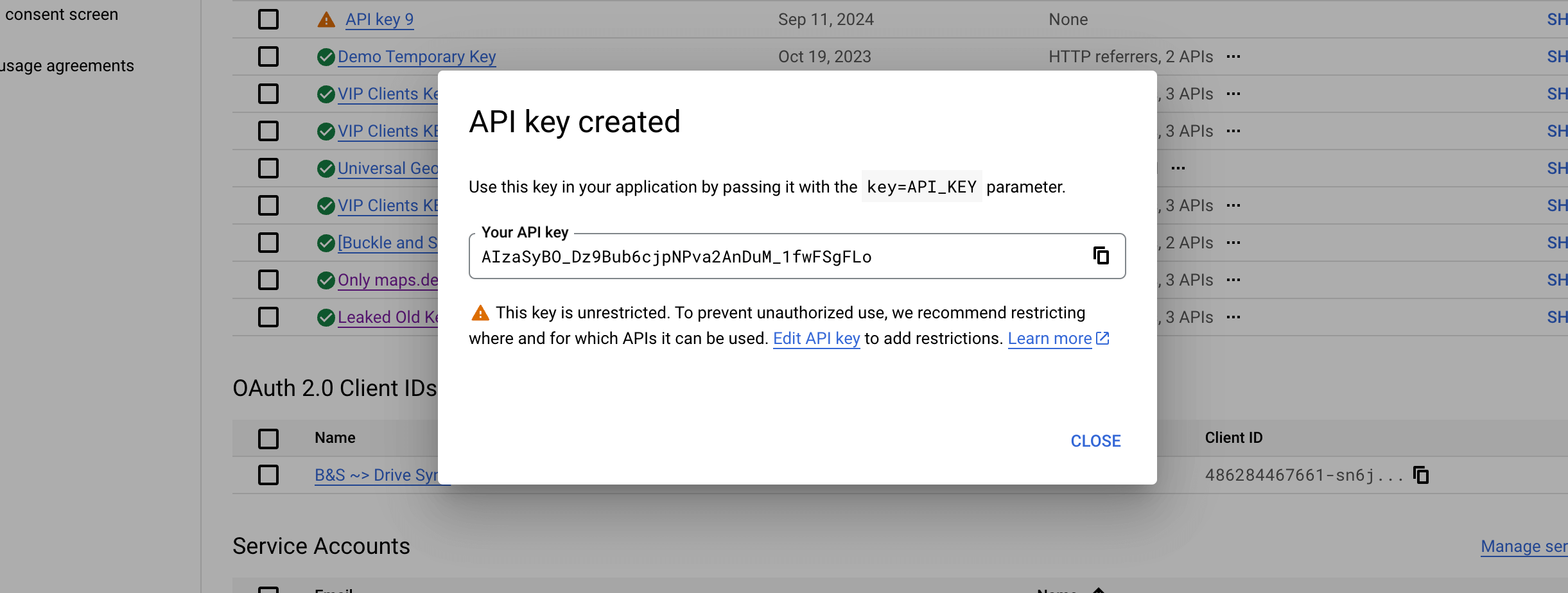
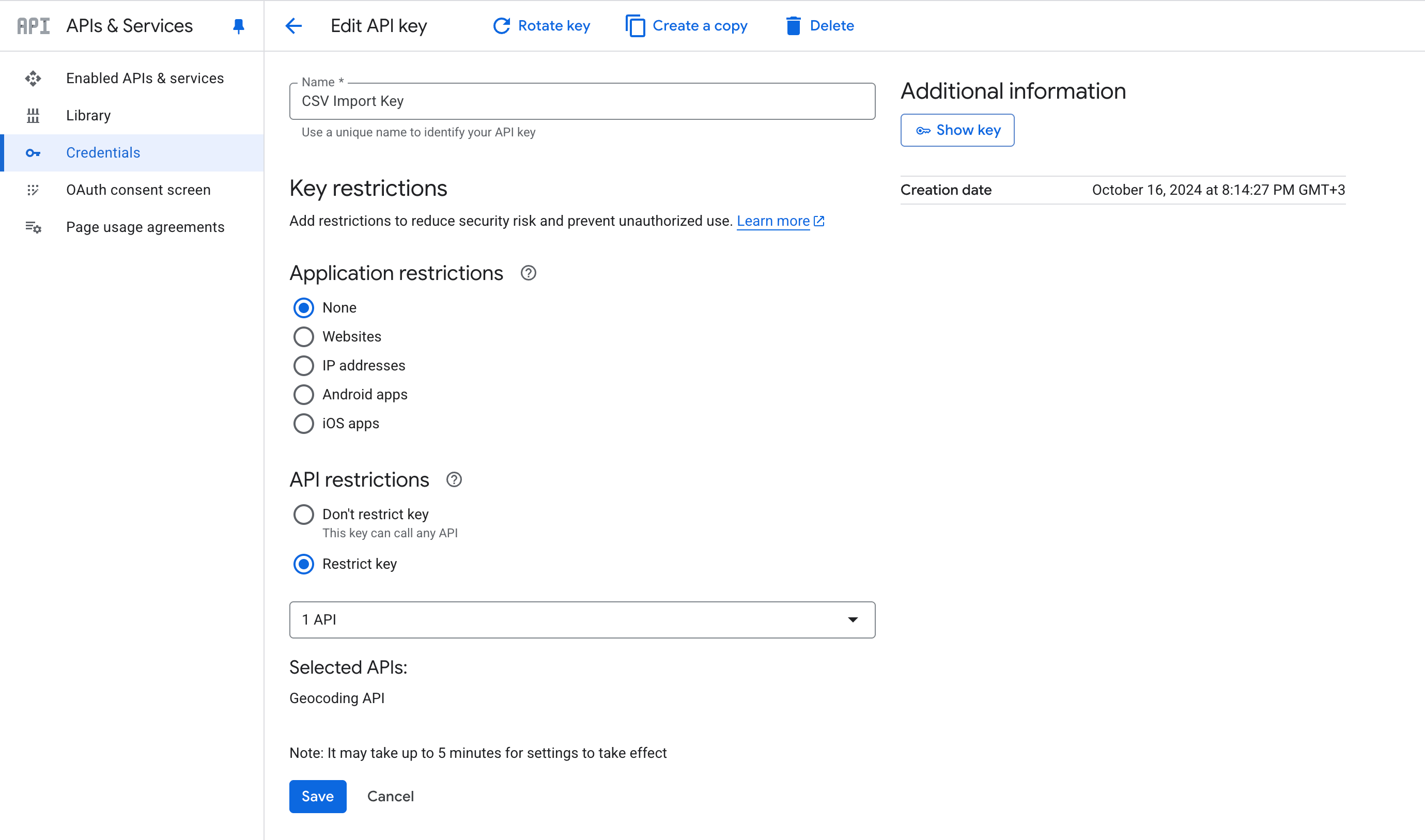
Click the "Edit API key" button in the dialog. At the top of the configuration page, give your key a descriptive name like "CSV Import Key" or "Private Geocoding Key".
Configuring restrictions
Configure the security restrictions for your import key.
Scroll down to the "API restrictions" section and select "Restrict key".
In the dropdown list of APIs, find and select only the "Geocoding API". Make sure no other APIs are checked.
Before your import key will work, make sure the Geocoding API is enabled in your project. To verify:
- Navigate to APIs & Services → Enabled APIs & Services
- Look for "Geocoding API" in the list
- If it's not there, click "Enable APIs and Services" and enable it
Click the "Save" button at the bottom of the page.
Note
It may take 5-10 minutes for Google's servers to propagate your configuration changes. The key may take a few minutes to become active.
Using your import key
Paste this key into the "Your second Google Maps API key" field in the Import settings section of the CSV import page. The field is optional and only needs to be filled when your CSV rows are missing coordinates.