This is the excerpt from the "How to generate your own Google Maps API key" article.
Restricting your API key to specific domains
An unrestricted API key can be used by anyone who finds it, potentially racking up charges on your account. Restrict it to your specific domains.
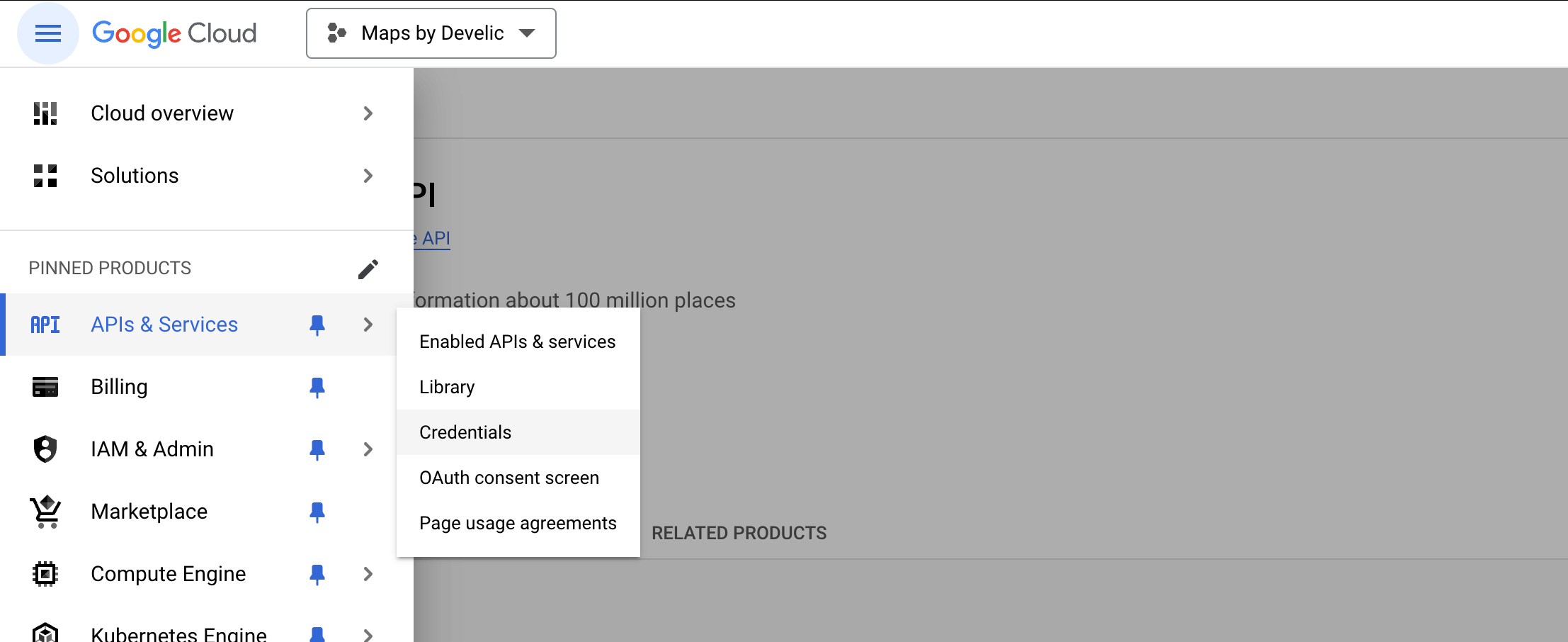
Open the Google Cloud Console.
Then from the main menu, navigate to APIs & Services → Credentials.
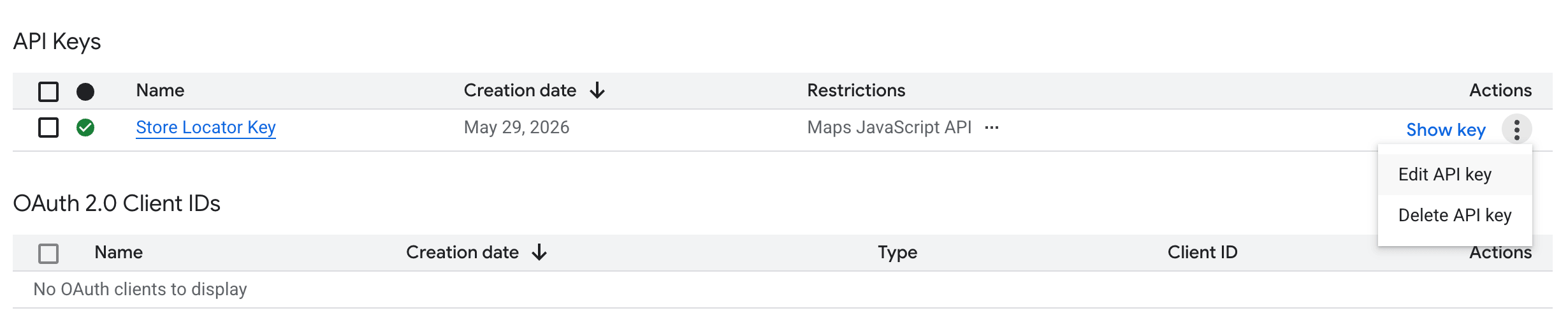
Choose your key and click the "Edit API key" button (or find your key in the Credentials list and click the edit icon). This opens the API key configuration page.
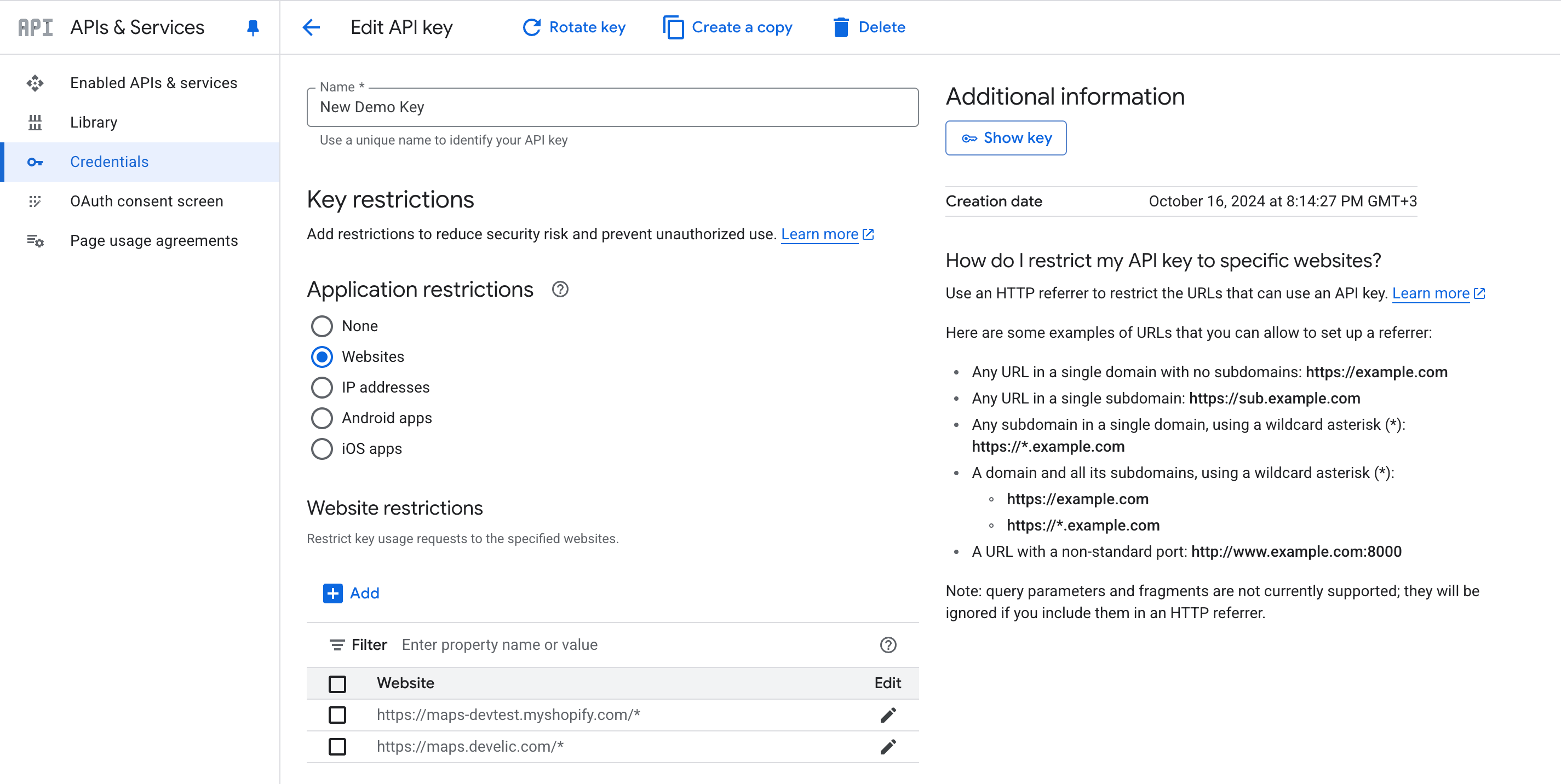
Under "Application restrictions", select the "Websites" option. This ensures your key only works when called from specific web domains.
Now, under "Website restrictions", add the following URLs (click "+ Add an item" for each entry):
-
https://your-store-domain.myshopify.com/*Replace your-store-domain with your actual Shopify store name. This URL always ends with
.myshopify.com. -
https://your-live-domain.com/*Replace this with your custom domain if you have one (e.g., mygoodstore.com or shop.mybrand.com).
The /* at the end of each URL means "allow usage on all pages of this domain". Without it, the key will only work on the exact homepage URL.
Click "Save".
Note
It may take a few minutes for Google's servers to propagate these changes. The key may take a few minutes to become active.