Overview
Omnium Maps offers two search modes, configured per map in the map editor under the Search settings tab. The right choice depends on how your customers typically look for a location.
- Simple search finds exact text matches within your location data.
- Address search uses Google Maps geocoding to find locations near an address or ZIP code and sort by distance.
Only one mode is active at a time. You can switch at any point without losing your location data.
Simple search
Simple search scans the title and description of each location for an exact text match against what the customer typed. No external API call is made. The search runs entirely against your stored location data.
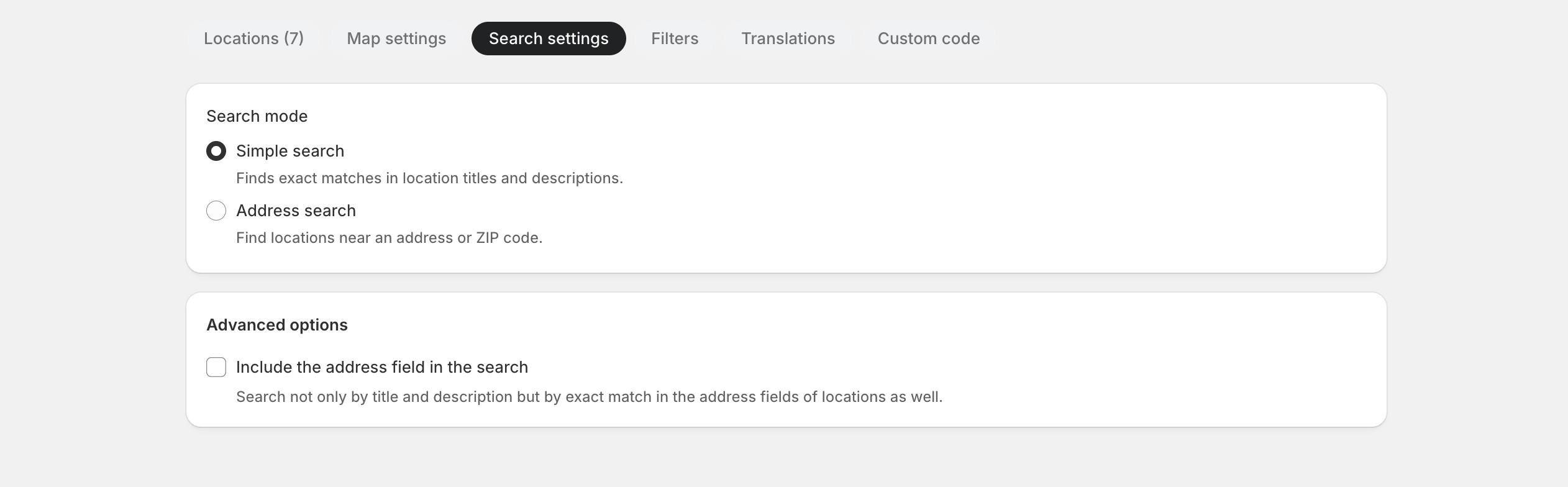
Best for: maps where customers already know what they are looking for: store names, city names, dealer names, product availability hints, or stockist listings.
Good default when: your map has a small number of locations, your location titles are distinctive, or you want the fastest setup with no Google API dependency.
-
Option: Include the address field in the search
By default, simple search only checks location titles and descriptions. Enabling "Include the address field in the search" also matches against the address field of each location.
This is useful when customers might search by city name or street and that text is stored in the address rather than the title. Keep in mind this is still an exact text match. It does not understand proximity or geocoding.
Address search
Address search uses Google Maps geocoding to resolve what the customer typed (an address, city, ZIP code, or landmark) into a geographic coordinate, then finds locations within a set radius of that point. This mode requires a working Google Maps API key with Maps JavaScript API, Geocoding API, Places API (New), and Places API (Legacy) enabled.
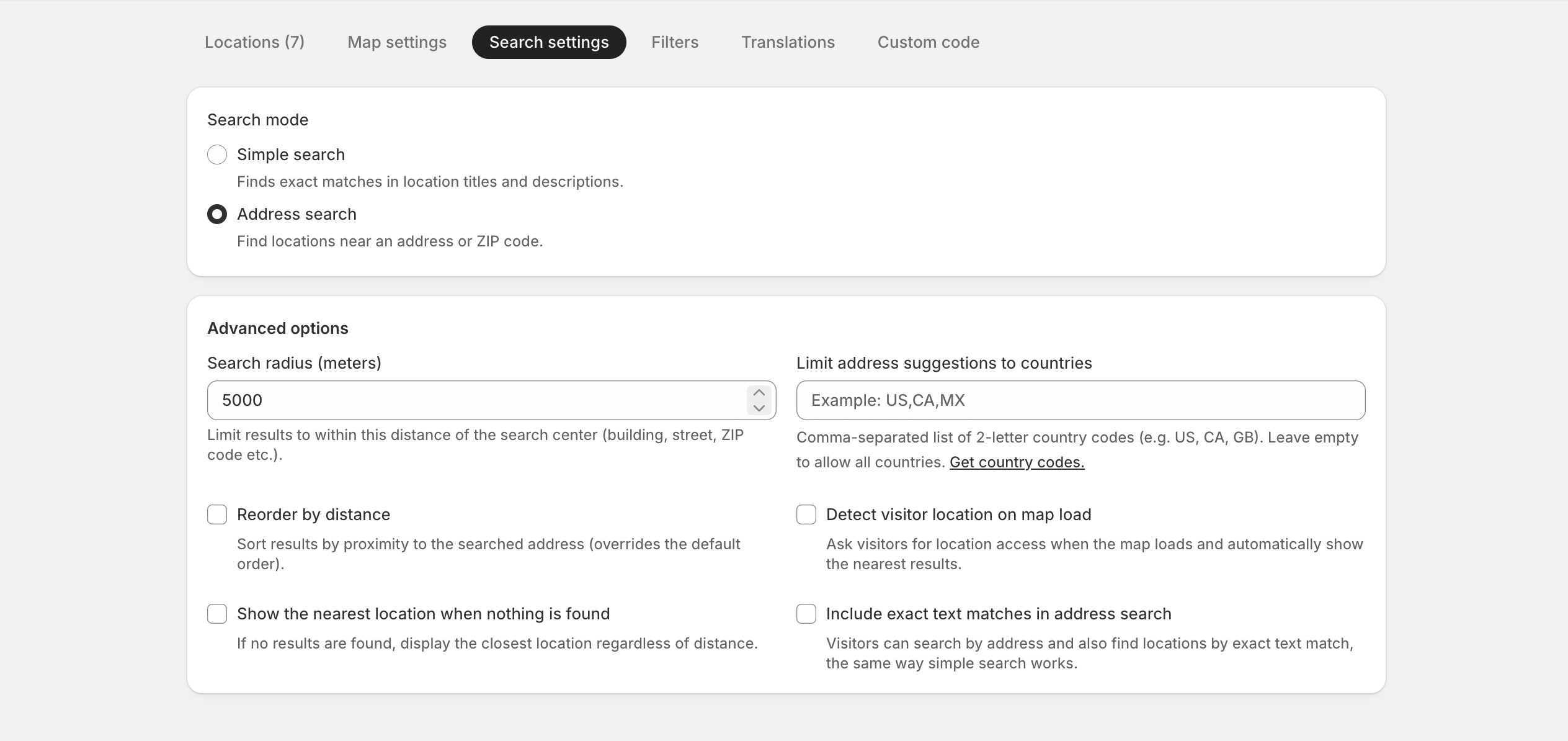
Best for: multi-location retailers, service area maps, dealer networks, and any map where finding the nearest location matters more than knowing its name.
-
Search radius (meters)
Sets the maximum distance from the searched point within which locations are returned. The default is 5000 meters (5 km). Increase it for sparse regional networks; decrease it for dense urban maps where a tight radius produces more relevant results.
-
Limit address suggestions to countries
Restricts the address autocomplete dropdown to specific countries. Enter comma-separated 2-letter ISO country codes (e.g.
US,CA,GB). Leave empty to allow all countries. Useful when your locations are in a specific region and you want to prevent irrelevant suggestions from appearing. -
Reorder by distance
When enabled, results are sorted by proximity to the searched address rather than your default location order. Enable this when showing the nearest location first is the primary goal of the search.
-
Detect visitor location on map load
When enabled, the map asks the visitor for browser geolocation permission as soon as the map loads. If permission is granted, the map automatically searches from the visitor's current position and shows the nearest results. This gives a "find stores near me" experience without the visitor needing to type anything.
Use this for maps where proximity is always the main intent. Avoid it on maps where visitors are likely to search for a specific named location rather than the nearest one.
-
Show the nearest location when nothing is found
When a search returns no results within the configured radius, this option displays the single closest location regardless of distance. This prevents visitors from seeing an empty map when they search in an area with no nearby coverage, giving them a useful starting point to call or navigate to.
-
Include exact text matches in address search
Adds simple search behavior on top of address search. Visitors can find locations by address proximity AND by exact text match against location titles and descriptions, the same way simple search works. This is useful when customers might search by store name or dealer name rather than an address, and you still want the proximity features of address search.
Which mode to pick
Use simple search when customers know the location name
Choose this if your visitors typically search by store name, city, dealer name, or product-related keywords. Keep location titles clear and specific. Add relevant terms to the location description, since these are also searched.
Use address search when distance matters
Choose this if your visitors typically search by street address, ZIP code, or "near me" intent. Set a search radius that fits your coverage density, and consider enabling "Reorder by distance" and "Detect visitor location on map load" for the best experience.
Not sure? Start with simple search
Simple search has no API requirements beyond your existing Google Maps key and works well for most small to medium-sized maps. Switch to address search if customers report difficulty finding nearby locations when searching by address or ZIP code.